
Canvas changes arrive in small packets, and the notes are written for every kind of user. Most of the time that is fine. This month, though, three items in the Canvas release notes touch things you do in a normal autumn term: marking group work, setting up course navigation and keeping a copy of your content and grades.
This post draws on the Instructure Community’s Canvas Deploy Notes dated 7 October 2026 and its Canvas Release Notes dated 17 October 2026. Your institution decides what is switched on, so read this as a prompt to check your own course, not a description of exactly what you will see.
Learning outcomes
By the end of this post you’ll be able to
- Explain what happens when you excuse a group submission in SpeedGrader.
- Identify which of the three changes you control and which depend on your admins.
- Apply a five-minute check to one of your own courses before marking begins.
Excusing a group submission now excuses the whole group
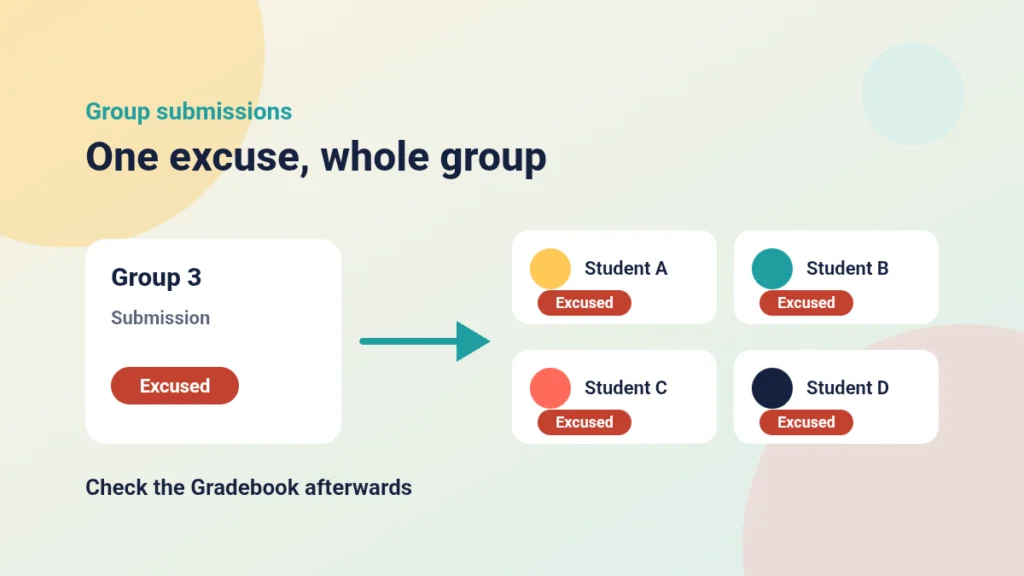
What changed. The deploy notes of 7 October say that excusing a group submission in SpeedGrader now excuses every member of the group. Previously you might have thought of it as an action on the one student you had open.
Who controls it. You do. It is something you do as the grader, so the habit that matters is yours. If you need a refresher on the marking screen, see How to Use SpeedGrader in Canvas and Why and Instructure’s guide to using SpeedGrader.
What to check. Before you excuse a group submission, ask whether the whole group should be excused. Afterwards, open the Gradebook and look at every group member’s cell. Our post on how to use the Grades page in Canvas covers reading it quickly.
Case study
One excuse, four students
Illustrative example
The context
A second-year module at a UK university has a group project submitted through a single Canvas assignment, in groups of four.
The challenge
A tutor has a habit of excusing a submission in SpeedGrader when one student has an agreed adjustment. After the change, that habit could excuse three other students who were expecting a mark.
What they did
Before marking began, the tutor read the deploy note, scanned the Gradebook for excused entries and added a line to their marking checklist: excuse a group submission only when the whole group is exempt.
What happened
No surprises reached students. The tutor also had a clear question to ask their learning technology team about the cases that do not fit this pattern.
What would you do?
- Which of your group assignments could this affect?
- Who would you ask if one member needs different treatment from the rest?
Put it into practice
Your turn
Open the Gradebook for one course with a group assignment. Look for any Excused entries you did not expect, and write down who in your team should be told if you find one.
The crossed-out eye in course navigation
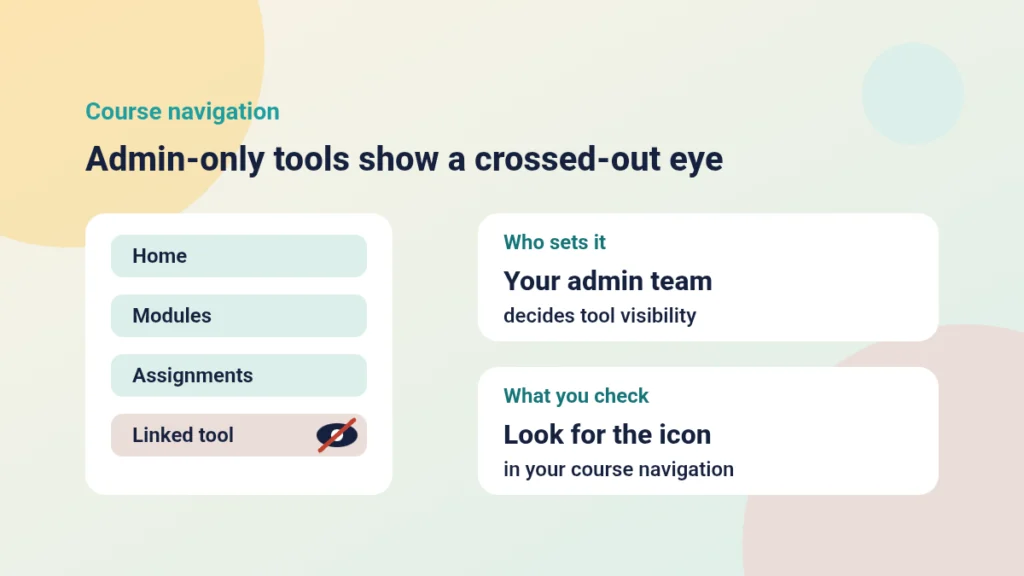
What changed. The same deploy notes say that LTI tools set to admin-only visibility now show a crossed-out eye icon in course navigation. It makes a hidden tool easier to spot.
Who controls it. Admins set that visibility. The icon is information for you, not something you change by interacting with it.
What to check. Look at your course navigation and note any tool with the icon. If you have told students to use that tool, confirm with your admin team that they can reach it. Instructure’s guide to managing Course Navigation links shows the settings you do control. Our bad practice in Canvas post has more on tidy navigation.
The Backup Reminder on the Dashboard course card
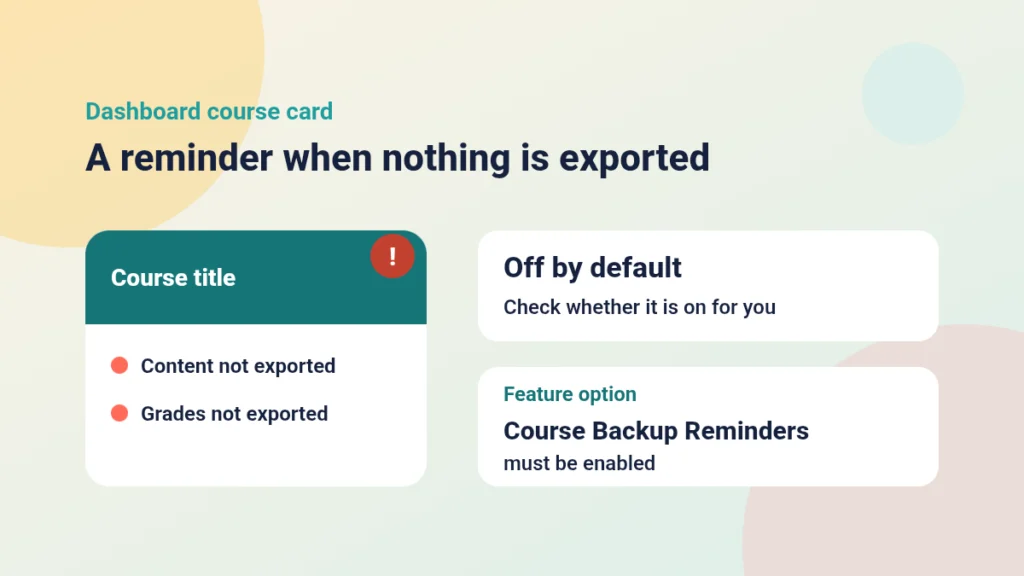
What changed. The release notes of 17 October describe a Backup Reminder. It shows an alert on the Dashboard course card when content or grades have not been exported.
Who controls it. It is off by default and needs the Course Backup Reminders feature option. So whether you see it depends on what your institution has switched on. If you never see an alert, that does not mean your course is backed up.
What to check. Ask your learning technology team whether the feature option is enabled. Either way, decide when you will export your course content and your grades, and put it in your diary for the end of marking.
Put it into practice
Your turn
Look at the Dashboard course cards for your current courses. Do any show an alert? Whatever you find, pick one date this term for exporting content and grades.
Your five-minute check
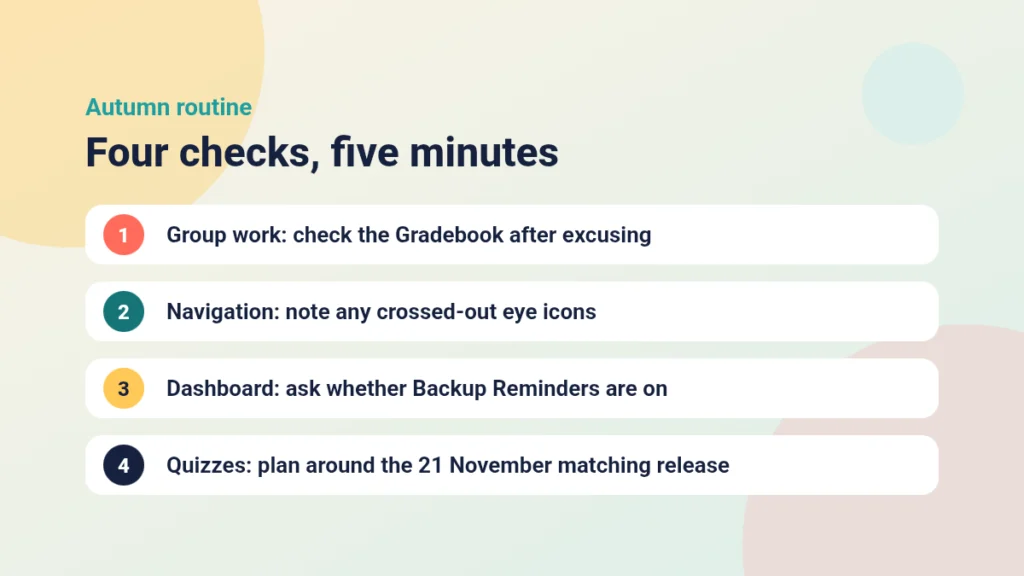
Run through these before you start marking. Each one takes about a minute.
- Group work: know that excusing now covers everyone, then check the Gradebook.
- Navigation: note any crossed-out eye icons.
- Dashboard: find out whether Backup Reminders are on.
- Quizzes: the deploy notes say the New Quizzes matching question type has been delayed to the 21 November release.
That last item matters if you planned matching questions for a November assessment. Use another question type for now, and see Instructure’s guide to creating a quiz in New Quizzes. Our post on building Canvas item banks helps if you are reorganising questions.
True or false: who controls what?
Decide whether each statement is true or false, and who controls the setting.
Check your understanding
Knowledge check
You excuse one group’s submission in SpeedGrader. Who is excused, and who made that happen?
Every member of the group, through your action as the grader. That is the change described in the 7 October deploy notes.
A colleague says they never see a Backup Reminder, so their content must already be exported. What would you tell them?
Not necessarily. The reminder is off by default and needs the Course Backup Reminders feature option, so its absence proves nothing.
You planned matching questions in New Quizzes for 10 November. What should you do?
Choose another question type or move the plan, because the matching type has been delayed to the 21 November release.
Remember
Key takeaways
- Excusing a group submission in SpeedGrader now excuses every group member, so check the Gradebook afterwards.
- A crossed-out eye in course navigation marks an LTI tool with admin-only visibility, which admins set.
- The Backup Reminder is off by default and needs the Course Backup Reminders feature option.
- New Quizzes matching questions are delayed to the 21 November release.
Your next step
This week, pick one course you are about to mark and run the five-minute check. Write down anything you could not answer, then send those questions to your learning technology team in a single message. Afterwards, look at how many of your answers began with “it depends on what is switched on”.
Reflect: Which of these settings would you only find out about when a student or colleague asked?
Keep going

How to Use a Rubric in SpeedGrader
How to mark with a rubric in SpeedGrader: attach it, apply ratings and write feedback students can use.

Refreshing Old Canvas Pages Without Rebuilding Them: A Before-and-After Checklist
You can improve inherited Canvas pages one at a time. This post gives you a short checklist for headings, link text, images and consistency, with a worked before-and-after page.

How to Build Canvas Item Banks and Why
What Canvas item banks are, why they save time and improve consistency, and how to build one and draw items from it in a New Quiz.