If you are new to Canvas, SpeedGrader is where most of your marking will happen. It brings the submission, the grade, your comments and any rubric into one screen. This post explains why it is worth learning and how to use it. It is the first in a short series on marking and grades in Canvas, followed by posts on using a rubric in SpeedGrader and using the Grades page.
Learning outcomes
By the end of this post you’ll be able to
- Explain why SpeedGrader speeds up marking and feedback.
- Apply SpeedGrader to mark a submission with comments and a grade.
- Design a marking routine that keeps your feedback consistent.
Why use SpeedGrader?
Marking from downloaded files, email and spreadsheets is slow, and marks and comments are easy to lose. SpeedGrader keeps the work and your response together.
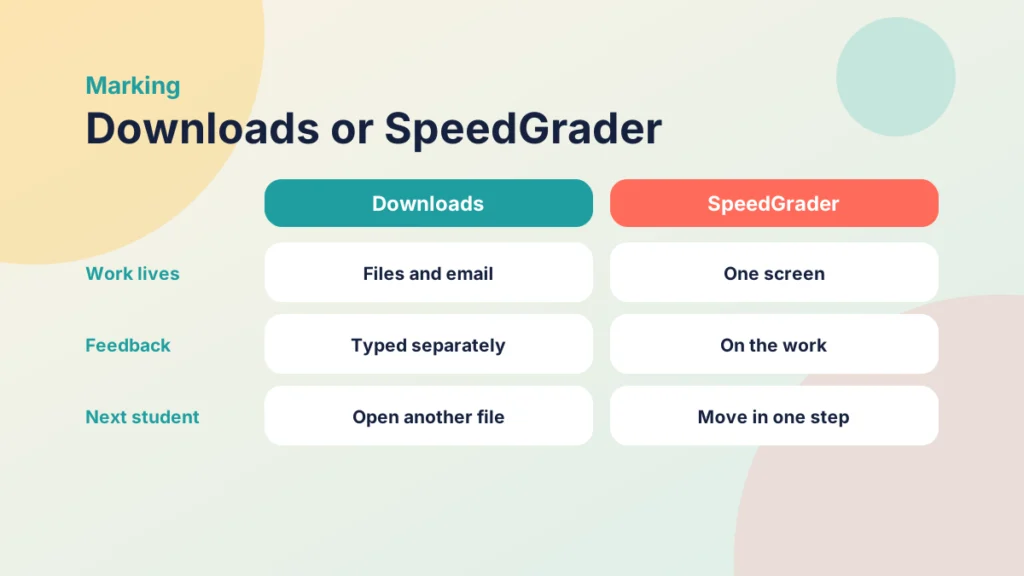
- Speed: move from student to student without leaving the screen.
- Consistency: use the same tools and criteria for every submission.
- Feedback in context: comment on the work itself, which supports the kind of feedback described in Creating engaging and effective learning experiences.
What SpeedGrader gives you
The layout varies a little between versions, but you will usually find the submission on one side and the grading tools on the other.
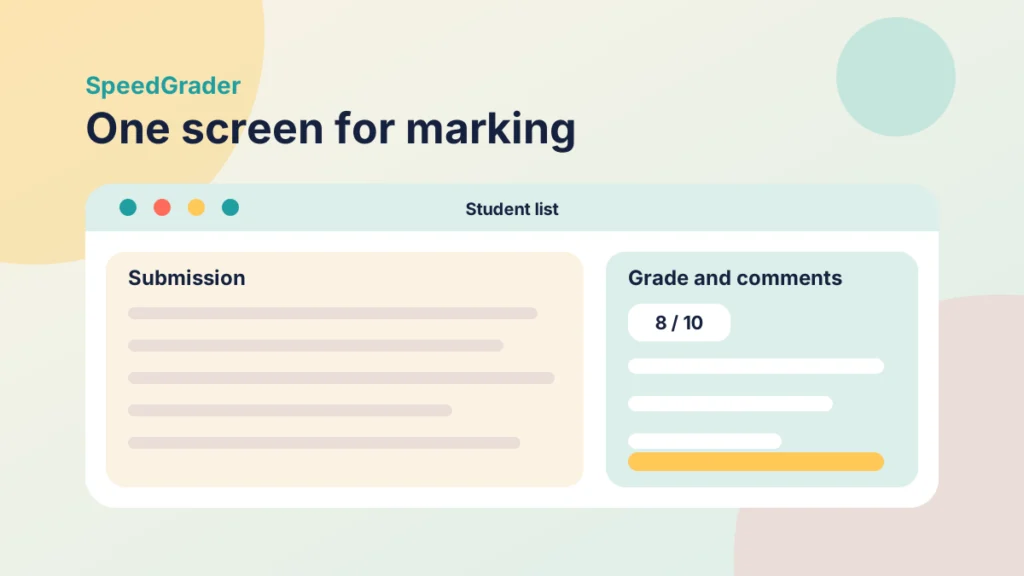
- Student list: choose a student or step through the class.
- Document viewer: read the submission and add annotations such as highlights and comments.
- Grade and comments: enter a mark and write, or record, feedback.
- Status: mark work as late, missing or excused.
- Rubric: assess against criteria, covered in the next post. For building one, see 5 tips for building effective rubrics in Canvas.
How to open and use SpeedGrader
You can open SpeedGrader from any assignment, so there is nothing to set up first.
Put it into practice
Try it in Canvas
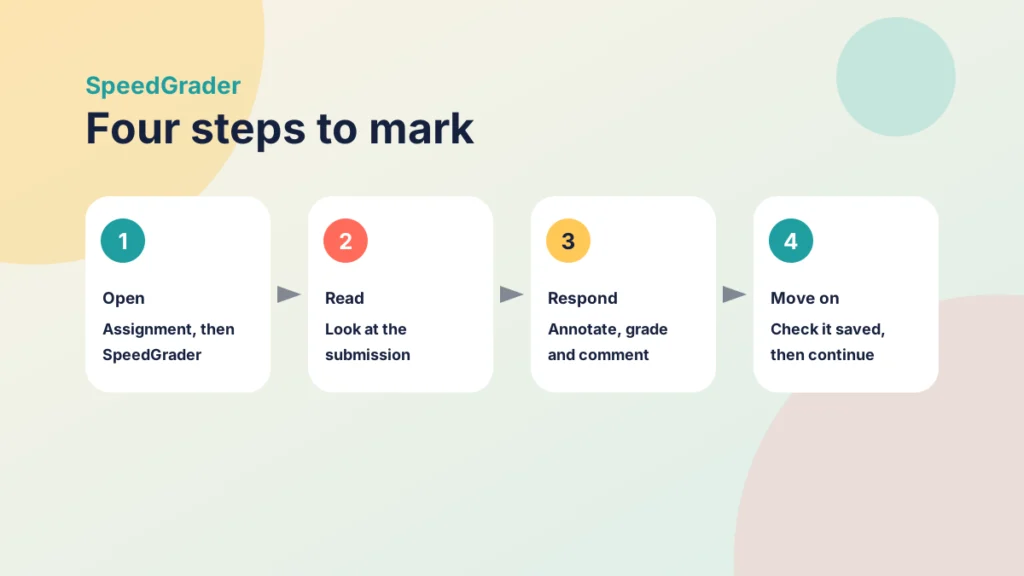
- Open Assignments and select the assignment you want to mark.
- Select SpeedGrader at the top right of the assignment.
- Choose a student from the list, or use the arrows to move between students.
- Read the submission and add annotations where they will help.
- Enter a score in the Grade box, or select View Rubric and rate each criterion. Type your feedback under Assignment Comments and select Submit, or insert a saved comment from the Comment Library.
- Check that a tick appears next to the student’s name, which shows the submission is graded, before moving on.
Put it into practice
Your turn
Open SpeedGrader for one assignment and mark two submissions. Time yourself on the second, and note one feature you had not used before.
Try it yourself
Put the marking workflow in order
Use the arrows to put the steps of marking one submission in SpeedGrader into a sensible order.
Marking fairly and consistently
Where your institution needs anonymous marking, tick Graders cannot view student names in the assignment settings, so names are hidden while you mark. It is a course feature, so you may need to switch it on first. Grades for anonymous assignments are posted manually, and posting them removes the anonymity. Use the same criteria and a consistent style of comment for every student.
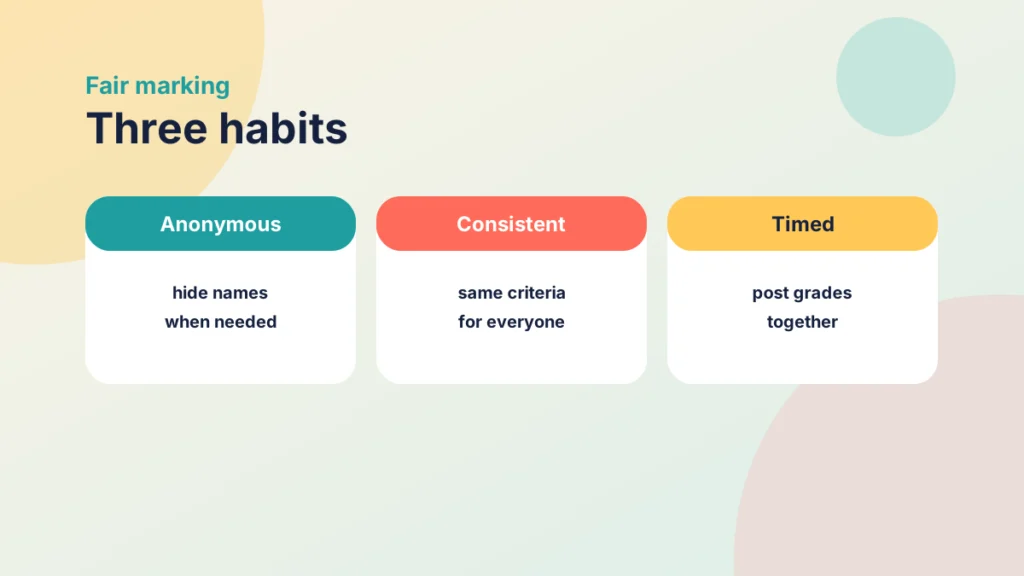
Also check the assignment’s post policy. It decides whether students see grades as you enter them or when you choose to post them. In Grades, open the assignment column’s menu and choose Grade Posting Policy: Automatically or Manually. Set it before you enter grades.
Case study
Marking sixty scripts in one place
Illustrative example
The context
Two tutors mark a first-year module at a UK university.
The challenge
They downloaded files and typed comments into a spreadsheet, so feedback varied and marks were hard to check.
What they did
They moved to SpeedGrader, used the same rubric, kept comments short and specific, and set grades to post together at the end.
What happened
Marking stayed in one place, comments were more consistent between tutors, and students received their results at the same time.
What would you do?
- What part of your marking could you move into SpeedGrader first?
- Would you post grades as you go or all together?
Check your understanding
Knowledge check
Name two things you can do for a student inside SpeedGrader.
For example annotate the submission and enter a grade or comment, because SpeedGrader keeps the work and feedback together.
Why check the post policy before marking?
It controls when students see grades, so you avoid releasing marks too early or too late.
How can you reduce bias while marking?
Use the anonymous grading setting so names are hidden, and apply the same criteria to every submission.
Why read a submission before entering a grade?
It keeps your judgement consistent across students and avoids revising grades later.
Remember
Key takeaways
- SpeedGrader brings submission, grade, comments and rubric into one screen.
- Annotating the work itself gives feedback in context.
- Anonymous grading and shared criteria support fair marking.
- The post policy controls when students see grades.
- Check that grades and comments have saved before moving on.
Your next step
This week, mark one batch of submissions entirely in SpeedGrader. Before you start, decide how you will word your comments, then look afterwards at whether the feedback feels more consistent and whether marking took less time.
Reflect: what is the most time-consuming part of your marking now, and could SpeedGrader take it on?