
A rubric turns your marking criteria into something students can see before they submit and you can apply quickly afterwards. This post shows how to use a rubric in SpeedGrader. It is the second in a short series on marking and grades in Canvas, after the post on SpeedGrader, and it assumes your rubric is built already. If not, start with 5 tips for building effective rubrics in Canvas.
Learning outcomes
By the end of this post you’ll be able to
- Explain how a rubric supports consistent marking in SpeedGrader.
- Apply a rubric to a submission and add criterion-level comments.
- Evaluate whether your rubric gives students useful feedback.
Why mark with a rubric?
A rubric makes your expectations visible, and it makes marking more consistent between submissions and between markers. Students can read it on the assignment before they submit, so the criteria shape their work rather than only explaining the mark afterwards.

- Clear: students see the criteria before they start.
- Consistent: every submission is judged against the same descriptions.
- Quicker: selecting a rating replaces typing the same comment again.
Getting a rubric ready
A rubric needs to be attached to the assignment, and it must be set up to calculate the grade.
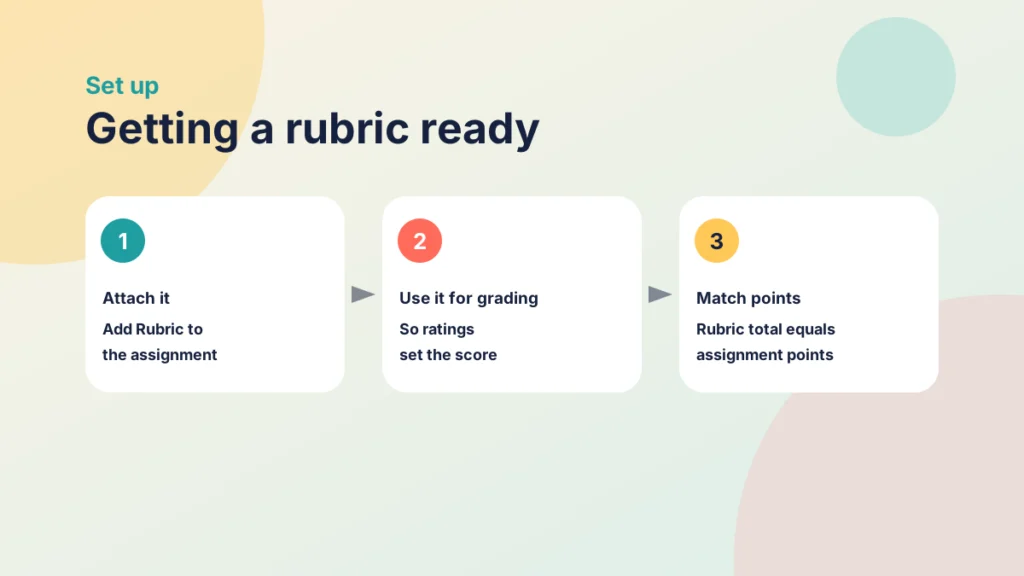
- Open the assignment and select Add Rubric. To reuse one you already have, select Find a Rubric, choose it and select Use This Rubric.
- In the rubric settings, tick Use this rubric for assignment grading, so ratings set the score, then select Create Rubric (or Update Rubric).
- Check that the rubric’s total points match the assignment’s points. If they differ, Canvas asks whether to Change the assignment’s points to match the rubric or Leave different.
Put it into practice
Your turn
Open a rubric you already use and check that its total points match the assignment points. If they differ, decide which one to change.
Using the rubric in SpeedGrader
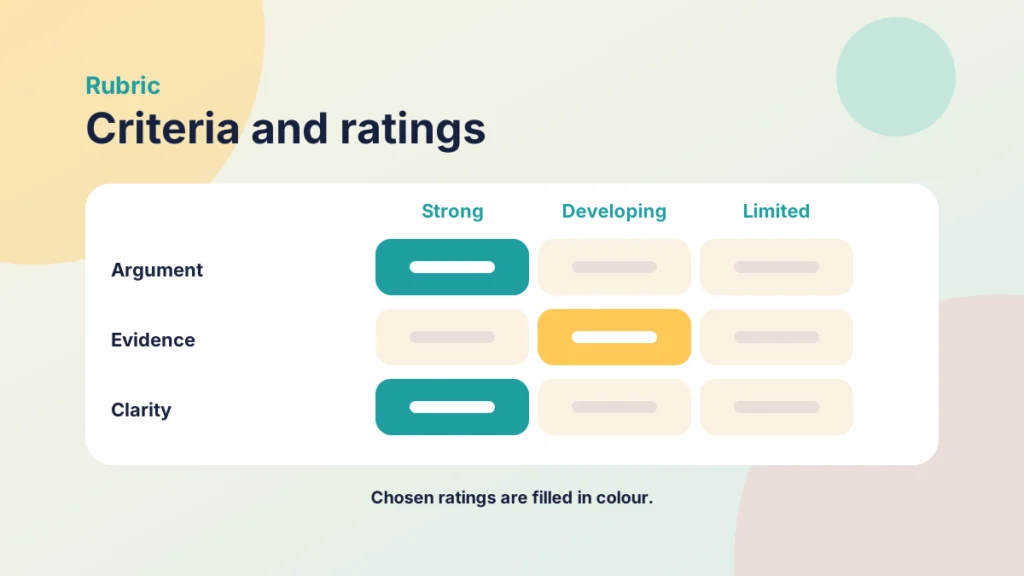
In SpeedGrader, choose a rating for each criterion and Canvas adds up the points. You can then add a comment against any criterion.
Put it into practice
Try it in Canvas
- Open the assignment, then select SpeedGrader.
- Select View Rubric in the grading panel.
- Select a rating for each criterion. The total updates as you go.
- Where the student needs specifics, select the criterion’s Comment icon and add a short comment.
- Select Save, then check the grade (it only fills in automatically when the rubric is used for grading). Add an overall comment if needed and select Submit.
Try it yourself
Try a rubric
Choose a rating for each criterion and watch the total and feedback build up, as they do in SpeedGrader. Change your mind as often as you like.
Feedback that helps students
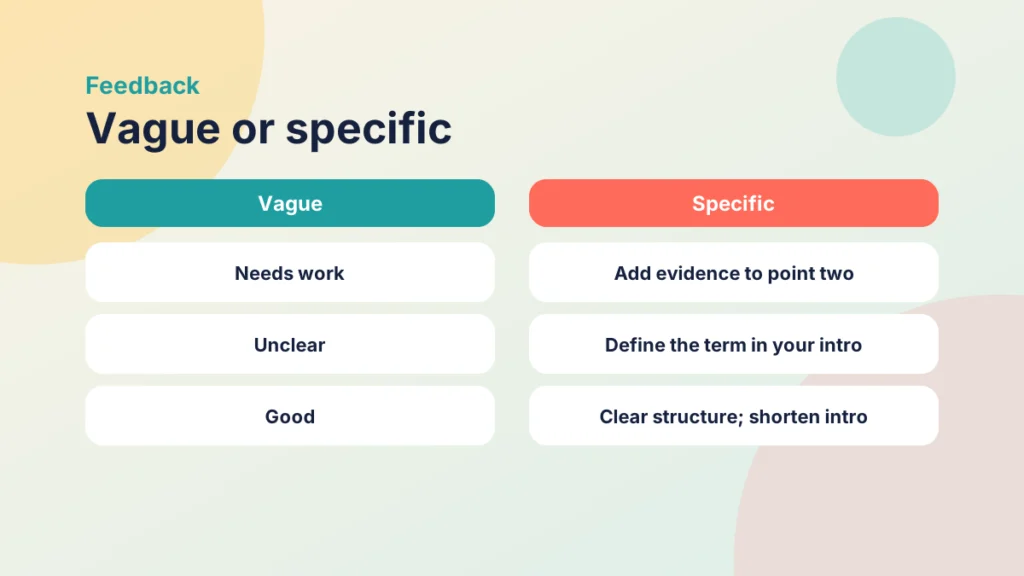
Students see the ratings and your comments alongside the grade, so the rubric becomes feedback in its own right. Use criterion comments for specifics, such as what to change or add, rather than repeating the rating. A comment that names the next step is more useful than one that repeats the descriptor, and it usually takes only a sentence. For more on useful feedback, see Creating engaging and effective learning experiences.
Case study
Cutting repeated comments in a report
Illustrative example
The context
A tutor marks a written report for a first-year module at a UK university.
The challenge
She kept typing the same comments about structure and evidence.
What they did
She used a rubric in SpeedGrader, selected ratings for each criterion, and added a comment only where a student needed a specific next step.
What happened
Marking felt quicker, and students’ feedback matched the published criteria.
What would you do?
- Which comments do you type most often?
- Could a rating descriptor say that for you?
Check your understanding
Knowledge check
What must you set so rubric ratings determine the assignment grade?
Use the rubric for assignment grading in its settings, because otherwise the ratings do not set the score.
What happens to the total when you select a rating?
It updates automatically, so you can see the points as you go.
When should you add a criterion comment?
Where the student needs something specific, because the rating already covers the general description.
Why check the rubric total against assignment points?
A mismatch would give a grade that does not reflect the criteria.
Remember
Key takeaways
- Attach the rubric and set it to be used for grading.
- Check the rubric total matches the assignment points.
- Select a rating for each criterion and the total updates.
- Use comments for specifics rather than repeating the rating.
- Students see ratings and comments alongside their grade.
Your next step
This week, mark five submissions using a rubric in SpeedGrader and add a comment only where a rating is not enough. Afterwards, look at how many comments you needed and which criteria still prompted extra explanation.
Reflect: which of your criteria are described clearly enough for students to act on?