
The Grades page is where Canvas collects every score in your course, and it looks different for you and for your students. This post explains what it shows and how to use it, from weighting to posting grades. It is the third in a short series on marking and grades in Canvas, after the posts on SpeedGrader and on using a rubric in SpeedGrader.
Learning outcomes
By the end of this post you’ll be able to
- Explain what instructors and students see on the Grades page.
- Apply assignment group weights and a post policy.
- Use gradebook tools to find students who need support.
What the Grades page shows
Open Grades in Course Navigation and, as an instructor, you see a grid. Students are rows, assignments are columns, and each cell holds a score. A total column shows the running result. Quiz scores arrive here too, including quizzes built from item banks.
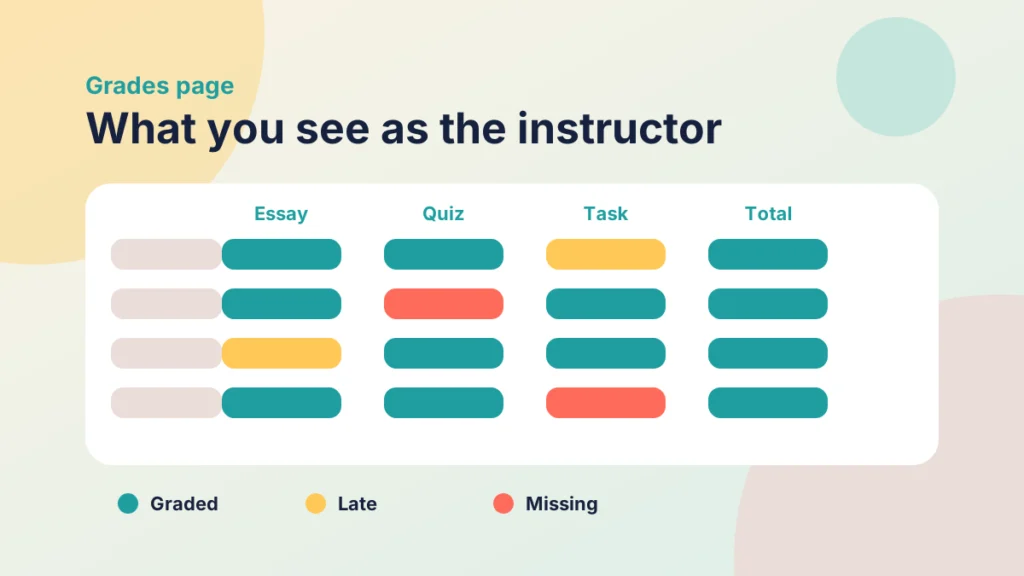
Cells can carry statuses such as late, missing or excused, so you can see problems at a glance.
Setting up grades before you start
Set up how grades add up before students submit anything, because changing it later alters every total.
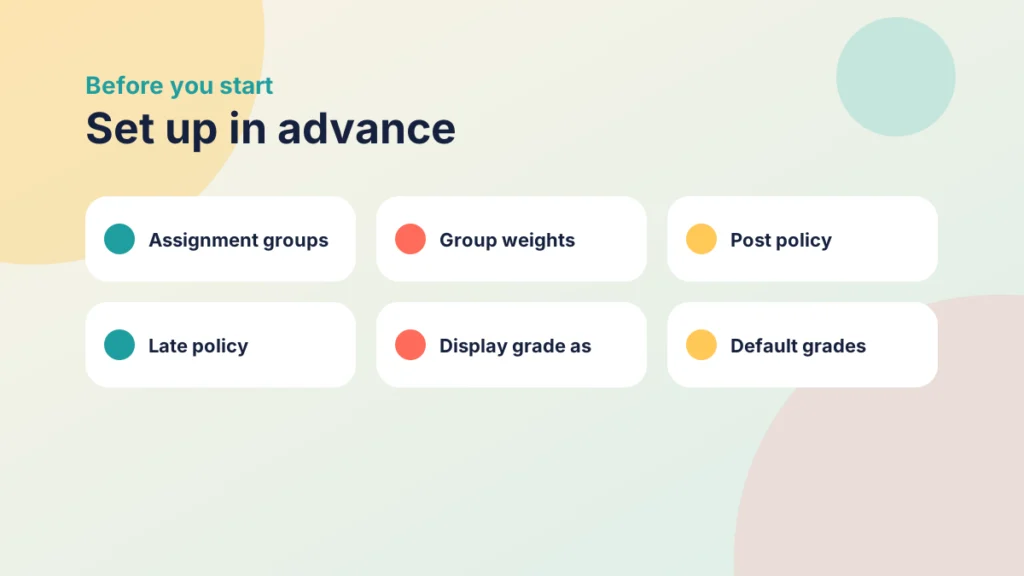
- Assignment groups: put assignments into groups such as coursework and exam.
- Weights: on the Assignments page, open the Assignments Options menu, choose Assignment Groups Weight, tick Weight final grade based on assignment groups and enter a percentage for each group. Canvas doesn’t insist the weights add up to 100%, so check the total yourself.
- Post policy: choose whether grades appear as you enter them (Automatically) or when you post them (Manually), using Grade Posting Policy in the assignment column’s menu. Set it before you enter grades: switching to manual later won’t hide grades already entered.
- Late policy: decide how late work is treated, if at all.
Put it into practice
Your turn
Write down your assignment groups and the weight each should carry. Check that the weights add up to 100%.
Everyday tasks in the gradebook
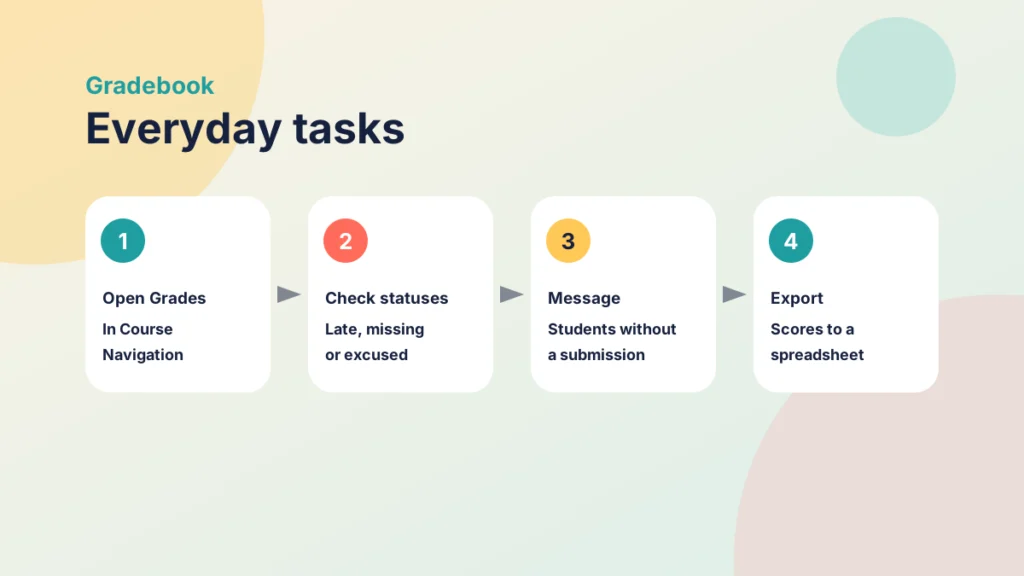
Most gradebook work comes down to a few repeatable tasks.
Put it into practice
Try it in Canvas
- Select Grades in Course Navigation.
- Open an assignment column’s menu to see options such as Message Students Who and Set Default Grade.
- Select a cell to enter or change a grade.
- Use the assignment menu to post or hide grades.
- Use Export to download scores as a CSV file. In older versions of Canvas this sits under Actions.
- If a mark looks wrong, open the Gradebook menu and choose Gradebook History to see every change.
Try it yourself
What would you do?
You are looking after the Grades page for a first-year module. Choose the best action for each situation.
What students see
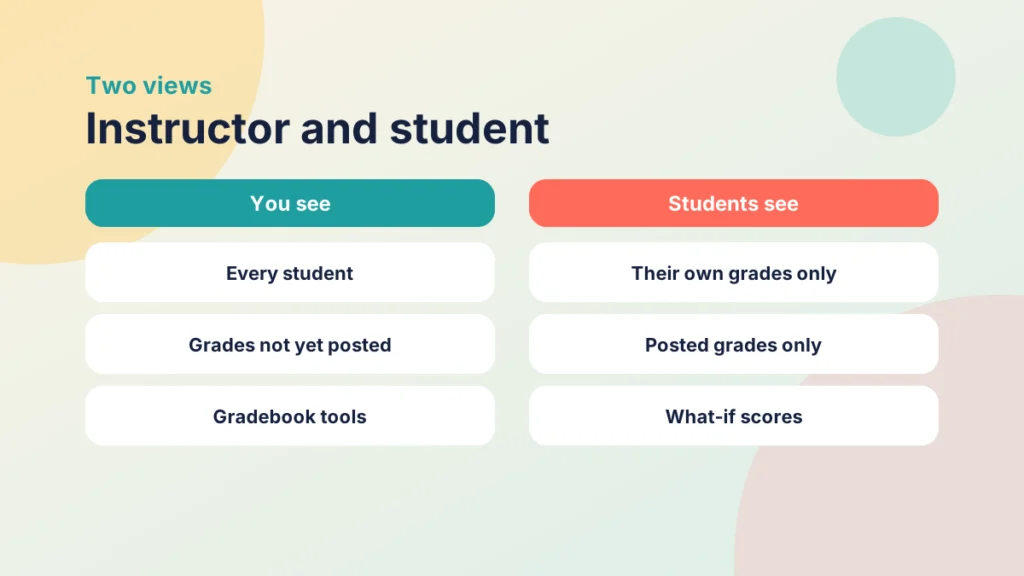
Students open Grades to see only their own scores, comments and rubric results, and only for grades you have posted. They can also try what-if scores to see how a future mark would change their total, unless you’ve hidden grade totals in Course Settings. If your course uses module requirements such as a minimum score, see Driving Canvas: Modules vs Pages. For motivation through visible progress, see 5 tips for gamification in Canvas.
Case study
Explaining a low total
Illustrative example
The context
A student on a first-year module at a UK university asks why their total looks low.
The challenge
They had strong marks in coursework but had not yet sat the exam, which carries most of the weight.
What they did
The tutor showed them the Grades page with weighted groups and pointed to the what-if scores.
What happened
The student saw how each group contributed and what the exam would need to deliver.
What would you do?
- Do your students know how their total is calculated?
- Where could you explain the weights up front?
Check your understanding
Knowledge check
Why set up weights before students submit?
Changing weights later alters every total, so settle the structure first.
What decides whether students see a grade as you enter it?
The post policy, because manual posting hides grades until you post them.
Which option helps you contact students who have not submitted?
Message Students Who from the assignment column menu, because it targets a group.
What can students do with what-if scores?
Test how a possible future mark would change their total, which helps them plan.
Remember
Key takeaways
- Instructors see a grid of students and assignments; students see only their own grades.
- Set up groups and weights before students submit.
- The post policy controls when grades become visible.
- Column menus and exports save time on routine tasks.
- Students can use what-if scores to plan.
Your next step
This week, open the Grades page for one live course and check three things: the weights, the post policy and the number of missing submissions. Look at whether anything surprises you, and decide whether to message students who have not submitted.
Reflect: would a student reading your Grades page understand how their total is built?