I have opened a great many Canvas courses over the years, and the same problems turn up again and again. None of them come from carelessness. They come from busy people doing their best with limited time. This post names the most common bad practice in Canvas and gives you a fix for each one that you can usually make in minutes.
Learning outcomes
By the end of this post you’ll be able to
- Identify the most common structural, content and assessment problems in a Canvas course.
- Apply a simple fix to each problem you find.
- Evaluate one of your own courses against a short checklist.
Why bad practice creeps in
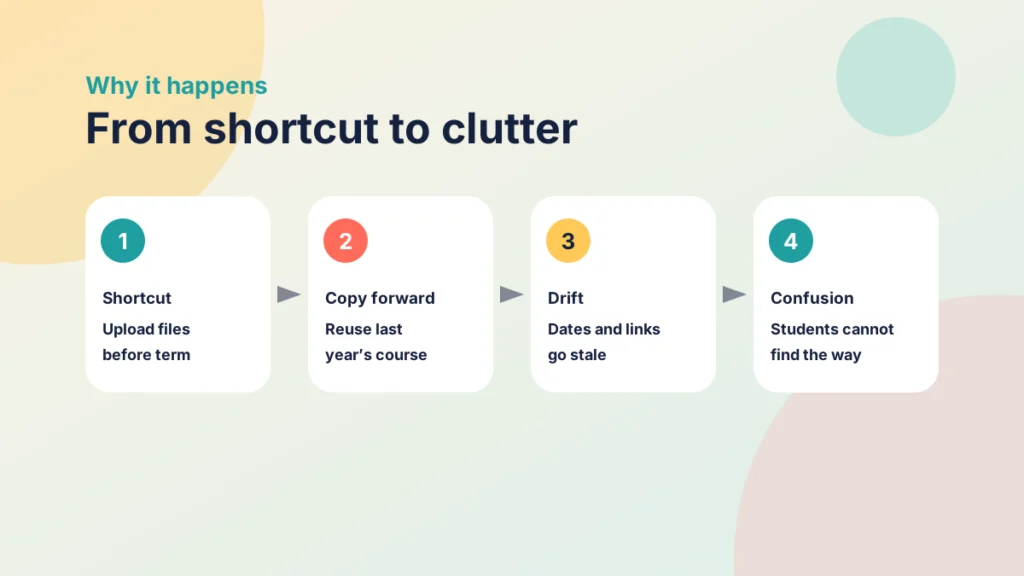
Most bad practice starts as a sensible shortcut. You upload the files you already have, because the term starts on Monday. You copy last year’s course, because rebuilding it would take a week you do not have. Each choice is reasonable on its own, and the course gradually becomes harder to use.
The student pays for it. A learner who cannot find the next task spends their effort on navigation rather than learning, and the courses that ask most of them are often the ones that explain least. If you want the bigger picture of what a good course does, Creating engaging and effective learning experiences is a useful companion, and the Introduction to the PANDA Framework gives you a structure to check against.
The good news is that the same few problems account for most of what I see. Fix those and your course improves noticeably, without a rebuild.
A word on tone before we start. Nothing here is a criticism of the people who built these courses. I have made every one of these mistakes myself, usually in a hurry, and I still find new examples when I review my own work. Treat the list as a prompt for a quick audit, not a verdict.
You do not need to fix everything at once. Choose the one area that would help your students most this term, make that change well and move on to the next when you have time.
Structure: files first, modules never
The most common problem is a course that works as a filing cabinet. Every file sits in the Files area or in one long list, named as it was on someone’s laptop: final_v2, final_v3, lecture 4 revised. Students are left to work out what to open and in what order.
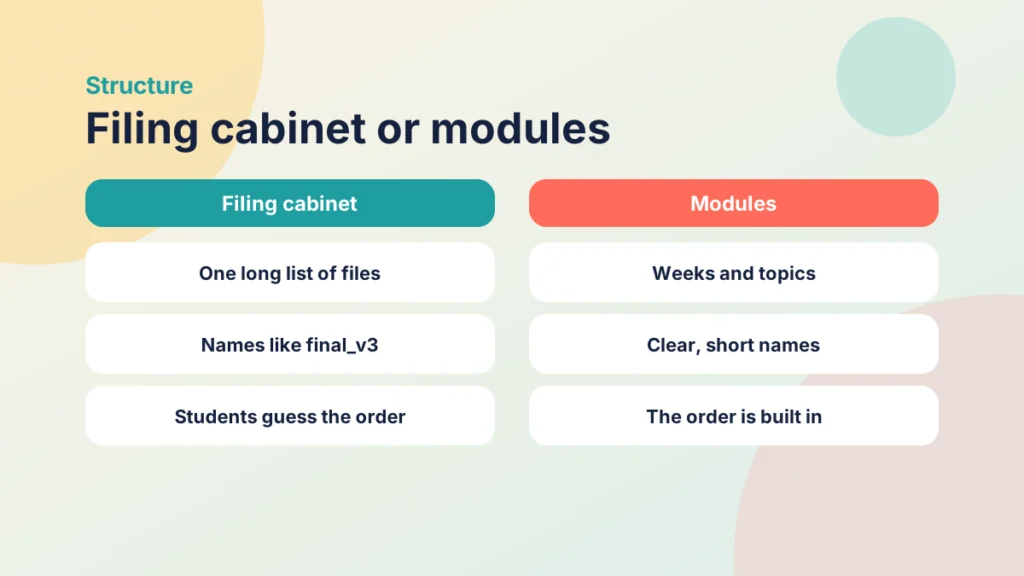
It is easy to see why this happens. Uploading is quick, and a list of files feels like a complete course. But a list tells students what exists, not what to do with it. They cannot tell the essential reading from the optional, or the task due this week from the one due next month.
The fix is to let Modules do the organising. A module is a container that gathers the pages, files, tasks and quizzes for a stretch of learning, in the order you want students to meet them. Name each module for the week or topic, and put a short overview page at the top that says what students will do and by when.
If you are unsure when to use a module and when to use a page, Driving Canvas: Modules vs Pages covers the difference. In short, modules organise and pages explain, so use each for its own job.
Put it into practice
Try it in Canvas
- Select Modules in Course Navigation.
- Select + Module and name it for the week or topic, such as “Week 3: Designing a survey”.
- Use the plus icon on the module to add existing pages, assignments, quizzes and files.
- Drag the items into the order students should follow, and use the item menu to indent related items.
- Publish the module when you are ready for students to see it.
Put it into practice
Your turn
Open one of your courses and look at the first screen a student sees. Can they tell, within ten seconds, what to do first? If not, write down the one change that would make it obvious.
Pages: walls of text and “click here”
The second problem lives inside the pages. I regularly meet a single page holding several screens of unbroken text, with a link in the middle that reads “click here”. Students skim it, miss the part that matters and then email you to ask.
Canvas pages are read on phones, on shared laptops and with assistive technology, so a layout that looks acceptable on your large screen can be hard going elsewhere. Students also tend to scan before they read. If the important instruction is buried in the fourth paragraph, many will never reach it.
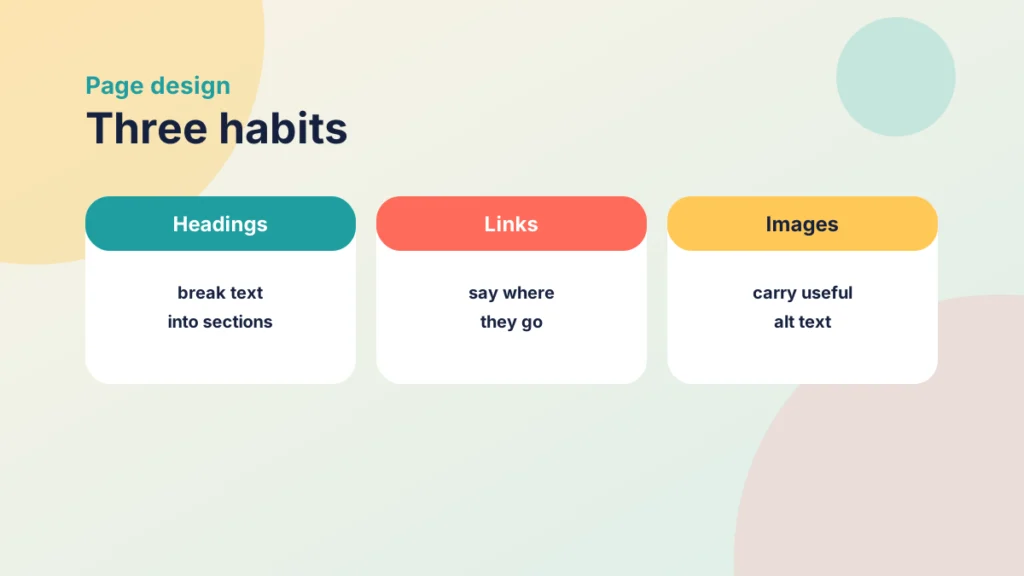
There are three habits to change.
- Break the text up. Use headings to separate ideas, keep paragraphs short and turn lists into real lists. In the Canvas editor the page title is already the top-level heading, so start your own headings at Heading 2.
- Write links that make sense alone. “Read the assessment brief” tells a student, and a screen reader user, where the link goes. “Click here” tells them nothing.
- Describe your images. Add alternative text that explains what the image shows and why it matters. If it is purely decorative, mark it as decorative.
Consistency matters as much as individual pages. If every page in the course follows the same pattern, students learn where to look. Tips and Tricks for Better Canvas Wiki Page Design has practical ideas for building that pattern, and the editor’s Accessibility Checker will catch many problems before students do.
Put it into practice
Your turn
Choose your longest page. Add headings, shorten two paragraphs and rewrite every link so that it makes sense when read on its own.
Assessment: unclear tasks and surprise grades
Assessment problems are the ones that cause complaints, so they are worth fixing first. The pattern is familiar. An assignment says “Submit your essay” and nothing else. The due date is in the syllabus but not on the task. The marking criteria live in a document nobody has opened. Then the grades arrive, the total looks odd, and students are confused about how it was calculated.
It helps to put yourself in the position of a student who has not heard you explain the task in a lecture. Everything they need has to be on the page, because the page is all they have at eleven o’clock at night when the deadline is close.
Each of these has a simple answer.
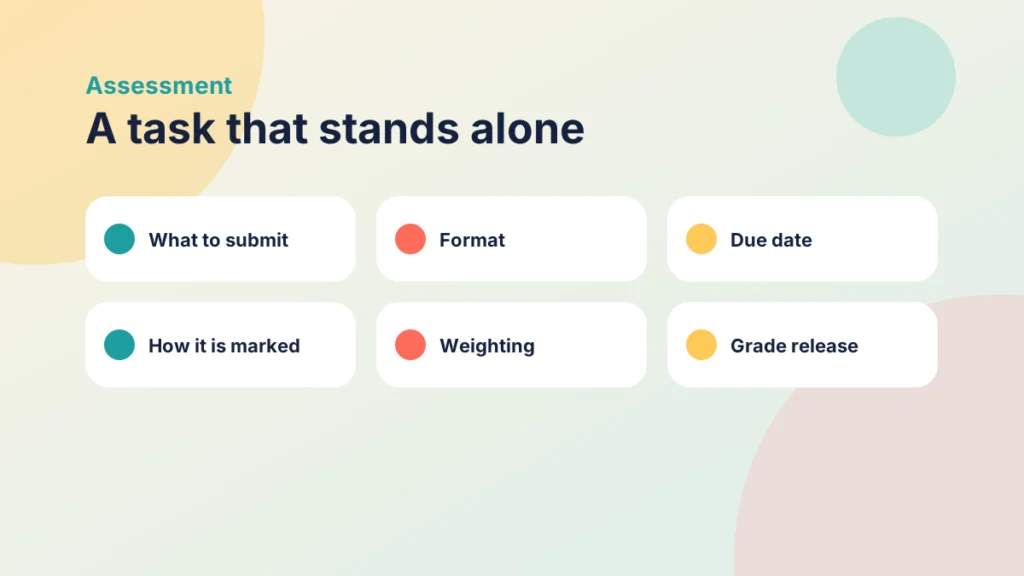
- Write the task so it stands alone. State what students submit, the format, the due date and how it will be marked.
- Attach a rubric. Students see the criteria before they start, and you mark more consistently. 5 Tips for Building Effective Rubrics in Canvas explains how to build one that works.
- Set up weighting before anything is submitted. If assignment groups carry weights, check that the percentages add up as you intend, because changing them later alters every total.
- Decide when grades appear. The post policy controls whether students see marks as you enter them or when you choose to release them.
Do not worry if your first attempt at a task description feels long. Students rarely complain that an assignment was too clear, and a few extra sentences now save you a stream of questions later.
Dates deserve a special mention. Canvas lets you set when an assignment is due, when it becomes available and when it closes. If those disagree with what you told students in an email, students will follow whichever they saw last, so make Canvas the single source of truth.
Case study
A grade total nobody understood
Illustrative example
The context
A module leader on a first-year course at a UK university runs three assessments across the term.
The challenge
Students emailed to say their totals looked wrong, and the leader spent days answering the same question.
What they did
They checked the Grades page, found that the group weights did not reflect the marking scheme, corrected them, attached a rubric to the main assignment and added the weighting to the course overview.
What happened
The questions became rarer, and the ones that remained were about the work rather than the arithmetic.
What would you do?
- Which of your assessments would a student struggle to explain?
- What could you add to the task page that would answer their first question?
Housekeeping: copied courses and broken links
The last problem is the one that builds up quietly. You copy a course forward each year, and each year a little more goes wrong. Last year’s due dates stay in place. Links point to resources that have moved. Unused tools such as old discussions clutter the navigation. A reference to “this year’s exam” appears in a page that was written three years ago.
None of these problems is dramatic by itself, but together they tell students that nobody has looked at the course recently. That affects how seriously they take it, and how much they trust the rest of what it says.
A tidy-up before each run takes less time than the confusion it prevents. It also gives you a natural moment to ask whether each page and activity still earns its place.
Put it into practice
Try it in Canvas
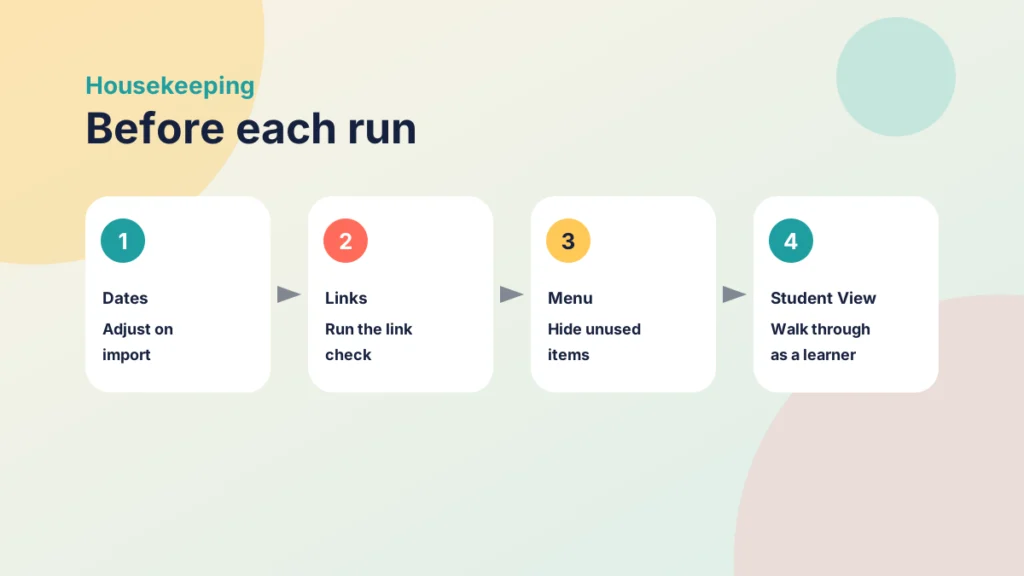
- When you import or copy content, choose the option to adjust events and due dates, and enter the new start date.
- Open Settings and use Validate Links in Content to find broken links.
- Still in Settings, open the Navigation tab and hide the menu items students do not need, then save.
- Use Student View to walk through the course as a student would.
- Read your own overview page and delete any sentence that is no longer true.
Menu wording and positions vary a little between institutions and versions of Canvas, so check them against what you see.
Put it into practice
Your turn
Pick one course you plan to reuse. Run the link check, then walk through it in Student View and note the first three things you would be embarrassed for a student to find.
Taken together, these five areas make a short checklist you can run in under an hour. Start with structure, because it affects everything else, then work through pages, assessment and housekeeping in whatever order suits your term.
Try the activity below to check you can match each problem to its fix.
Try it yourself
Match the problem to the fix
Choose the fix that best answers each common Canvas problem, then check your matches.
Check your understanding
Knowledge check
Why use modules rather than a long list of files?
Modules put content in a deliberate order with a clear purpose, so students know what to open next.
What is wrong with a link that says “click here”?
It means nothing out of context, so students and screen reader users cannot tell where it goes. Descriptive link text solves this.
Name two things an assignment should state so it stands alone.
For example what students submit, the format, the due date and how it is marked, because students should not need to hunt for them.
Why check weights before students submit?
Changing weights later alters every total, so set them up first.
What can you do about last year’s dates in a copied course?
Use the option to adjust events and due dates during import, then check the dates yourself.
Remember
Key takeaways
- Most bad practice in Canvas starts as a sensible shortcut and builds up over time.
- Use modules to organise and pages to explain.
- Short sections, clear headings and descriptive links make pages usable.
- State the task, the date and the marking approach on the assignment itself.
- Tidy copied courses before every run, and check them as a student.
Your next step
This week, pick one course and spend thirty minutes on a single fix: restructure one module, rewrite one page or check the dates on one assignment. Afterwards, look at whether the questions students send you change.
Reflect: which problem in this post would your own students recognise first, and what is stopping you fixing it?