I wanted to create a quick survey questionnaire for students in Canvas, but at first glance the question types didn’t allow it, until I found ‘Multiple Dropdowns’. It’s in the Canvas Guides, so it’s a lesson in reading them all, but in case you missed it too, here’s how to add survey-type questions.
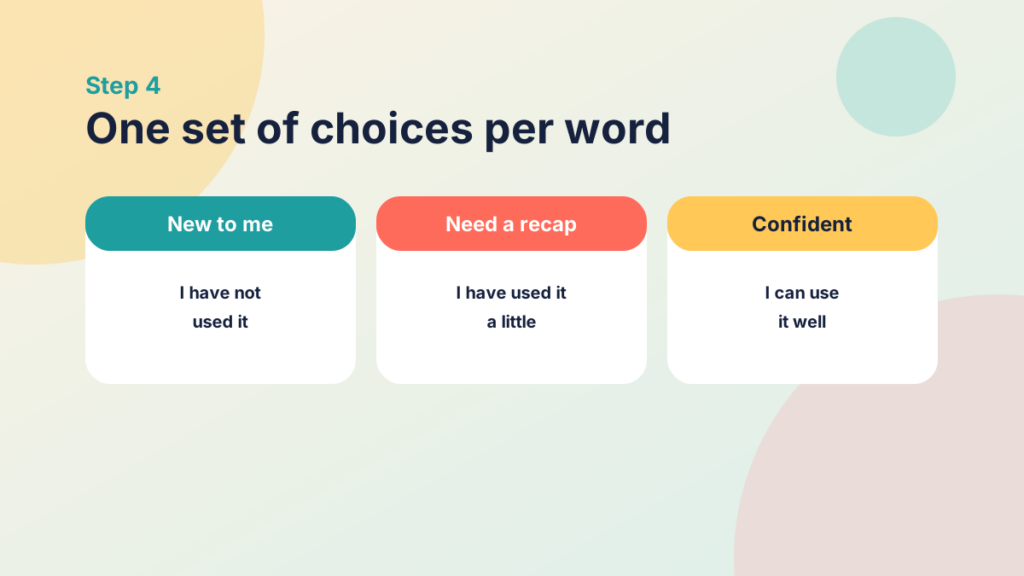
We wanted a quick way for students to assess their own knowledge of different platforms, with answers such as ‘new to me’, ‘need a recap’ and ‘confident’.

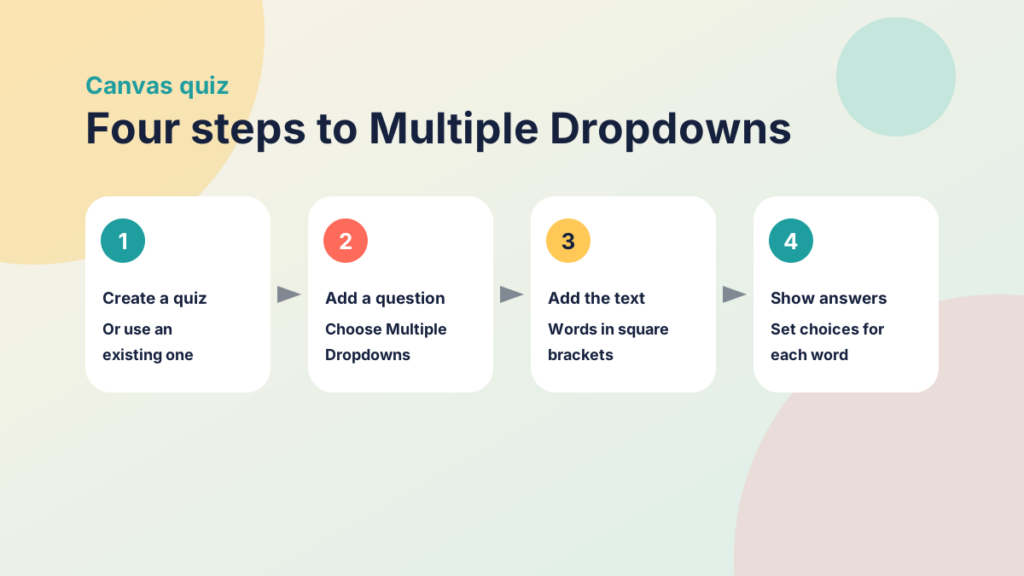
Step 1: Create a quiz
In your Canvas course, create a quiz. If you already have a quiz or a question bank, that’s fine, as long as you have one to add a question to.
Step 2: Add a question
In editing mode on the quiz’s ‘Questions’ page, click ‘New Question’ and change the drop-down menu to ‘Multiple Dropdowns’.

Step 3: Add the questions as text
I added the following two-column table in the HTML editor:
| Skill/knowledge | Select from the drop-downs provided |
| Office 365 – learn about its apps including Outlook, Word, Excel, Notebook, Teams and One drive | [office-365] |
| Word formatting – specific skills required for research & reports Adding headers & footers, creating content pages, adding page numbers (x of y), creation of a content page, changing midsection page from portrait to landscape, insert a table, double spacing | [word] |
| Excel specific – specific skills required for research & reports creating formulae (sum, %, averages, standard deviations), inserting pivot tables, creating graphs/tables with accurate labeling | [excel] |
| OneNote – an online digital notebook allowing you to manage notes from your lectures/seminars and research, collaborating with others | [onenote] |
| Boolean – a way to organise searches using a combination of keywords an symbols | [boolean] |
| Referencing tools – allows you to store, organise and format your research references so that you can easily incorporate them into your research papers, essays and dissertations | [referencing] |
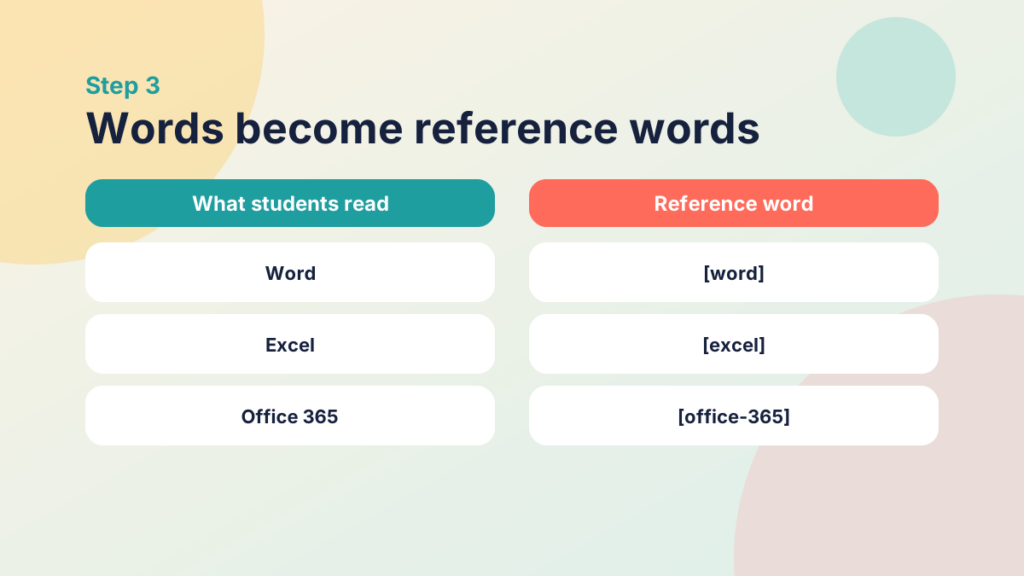
The key is the second column. Each word in square brackets, such as [word], [excel] or [office-365], is a reference word, which you’ll use in the next step. You can use more than one word if you separate them, as in [office-365].
Step 4: Show possible answers
Each question now has a Canvas reference word.

These appear in the answers area at the bottom of the question as drop-downs. Each one can have its own set of choices.
When you’ve added the possible answers for each reference word, click ‘Update Question’ before saving your quiz. You’ve now created a question with multiple drop-down answers. How cool is that!
Try it yourself
Order the four steps
Put the steps for creating a Multiple Dropdowns question in order.
Try it yourself
Multiple Dropdowns check
Check what you remember from the steps.